I would like to share here some general windows system Tips. Wish you all will like it
1. Reinstall Windows XP without activate requirement
If you reinstall Windows XP, re-activated is required. backup the file
"Windows \ System32 \ Wpa.dbl, then you no need to re-active anymore.
2. How to know whether the Windows XP activated.
Open → began running in the pop-up dialog box input: oobe / msoobe / a, carriage return after the pop-up window system will tell you the system has been activated.
3. Close zip folder function
Did you feel that the Windows XP zip folder function too slow, functions not attractive? If so, you can open the operation began → in the pop-up dialog box input: regsvr32 / u zipfldr.dll, carriage return after the closure of ZIP folders can be functional.
5. Landing interface background color change
Open the Registry Editor, find [HKEY - USERS \. DEFAULT \ Control Panel \ Colors], the value Background will be changed to "0 0 0" (without quotation marks), which became a black background login.
Showing posts with label Windows System. Show all posts
Showing posts with label Windows System. Show all posts

Tips to faster your Windows System (Part 2)
After the 10 steps mentioned before in my previous post but your PC still consider slow, then you can try another 10 steps for better speed.
1. Use Intel Application Accelerator to speed up your disk access.
2. Memory management (at least 512MB RAM Required). This allow XP to keep data in Memory instead of paging section of RAM.Go to->Start->Run->regedit->HKEY_LOCAL_MACHINE->SYSTEM->CurrentControlSet->Control->Session Manager->Memory Management->Double click it->DisablePageingExecutive->Double Clik it->Set value to 1.
3. Disable Yahoo Messenger, Google Talk, and other unwanted programs from startup(You can do this through registry editor). Because they do not appear in normal Startup Option.
4. Disable indexing files service (only if you do not use search option regularly). To do this follow the following steps.Go to My Computer->Select the drive for which you want to disable the indexing service->Properties->Unselect ‘Allow Indexing Service’->Ok.
5. For Windows XP, You must use NTFS partition. FAT partition is less supportive for Windows XP.
6. In BIOS, Select first booting device as your HDD.
7. Setting Priority High for a particular program.Open Task Manager->Processes->Select the desired Program->Right Click->Set Priority->High->Ok.This Priority set if for current session. Once you restart your system then its priority will again be Normal.
8. Keep deleting your Temporary Internet Files and temporary at regular intervals.*Go to Programs -> Accessories -> System Tools -> Disk Cleanup.*Now select a drive to cleanup.*After that click “OK”.*Now clean up unwanted things like “Temporary Files”, “Recycle Bin” and click “OK”.
9. Empty your browser’s cache at regular intervals because it can slow your computer. Removing the browser’s cache will also free up some disk space.
10. Avoid keeping Movies in your PC. Remove any unwanted movie(s) because this can free up a lot of disk space and make your computer fast. And avoid downloading movies from the net because these carry viruses, spywares, etc. many times and can slow down and can also infect your computer.
Well, hope this can help you. If not, you might need to consider to upgrade your PC.
1. Use Intel Application Accelerator to speed up your disk access.
2. Memory management (at least 512MB RAM Required). This allow XP to keep data in Memory instead of paging section of RAM.Go to->Start->Run->regedit->HKEY_LOCAL_MACHINE->SYSTEM->CurrentControlSet->Control->Session Manager->Memory Management->Double click it->DisablePageingExecutive->Double Clik it->Set value to 1.
3. Disable Yahoo Messenger, Google Talk, and other unwanted programs from startup(You can do this through registry editor). Because they do not appear in normal Startup Option.
4. Disable indexing files service (only if you do not use search option regularly). To do this follow the following steps.Go to My Computer->Select the drive for which you want to disable the indexing service->Properties->Unselect ‘Allow Indexing Service’->Ok.
5. For Windows XP, You must use NTFS partition. FAT partition is less supportive for Windows XP.
6. In BIOS, Select first booting device as your HDD.
7. Setting Priority High for a particular program.Open Task Manager->Processes->Select the desired Program->Right Click->Set Priority->High->Ok.This Priority set if for current session. Once you restart your system then its priority will again be Normal.
8. Keep deleting your Temporary Internet Files and temporary at regular intervals.*Go to Programs -> Accessories -> System Tools -> Disk Cleanup.*Now select a drive to cleanup.*After that click “OK”.*Now clean up unwanted things like “Temporary Files”, “Recycle Bin” and click “OK”.
9. Empty your browser’s cache at regular intervals because it can slow your computer. Removing the browser’s cache will also free up some disk space.
10. Avoid keeping Movies in your PC. Remove any unwanted movie(s) because this can free up a lot of disk space and make your computer fast. And avoid downloading movies from the net because these carry viruses, spywares, etc. many times and can slow down and can also infect your computer.
Well, hope this can help you. If not, you might need to consider to upgrade your PC.
Tips to faster your Windows System
Many computer user is facing the same problem with their computer speed. Everyone are disappointed due to the low speed of the computer and looking around the solution. By right, you can actually do something to speed up your PC without upgrade ( of course if you are wiling to pay for upgrading might be better).
First, go through the below 10 Tips and do accordingly and i believed that there might have some improvement on the speed.
1. Your PC Must have at least 512MB RAM for Windows XP (or 1GB ram for Vista), Intel Pentium 4 Processor, 40 GB HDD. These are the minimum requirements.
2. If you see a “virtual memory low” message then increase its virtual memory. To increase virtual memory do the following :
Go to My Computer->Properties->Advanced->Performance Settings->Advanced->Virtual Memory->Change->Select the appropriate drive->Custom size->set appropriate level(our it is 600(min.) & 700(max.)->Ok.
3. Increase ‘Visual Performance’.
Go to My Computer->Properties->Advanced->Performance Settings->Visual Settings->Custom->Select only the following options :
a)Slide taskbar buttons.
b)Smooth edges of screen fonts.
c)Smooth-scroll list boxes.
d)Use a background image for each folder type.e)Use visual style on windows and buttons.
4. Don’t keep unwanted/extra fonts.
To remove extra fonts:
Go to Start->Settings->Control Panel->Fonts.
Removing unwanted fonts and make your computer a bit faster.
5. Your Desktop Wallpaper & Screensaver consume a large amount of disk space.
Select the ‘None’ option for both wallpapers & Screensavers. Selecting ‘None’ for screensavers also saves power!
6. Avoid keeping unwanted games or games which you don’t play.And remove all unwanted games.
7. Uninstall/Remove all unwanted softwares from your computer. This way your system will be fast and there will be less crap in your system.
8. Use Registry Cleaner to keep your registry clean(without errors). You can also use CCleaner(Crap Cleaner) which is a free software which fixes registry errors.
9. Use Hybernating Option for Quick windows start. To active Hybernating follow the following steps:
Desktop->Properties->Screensaver->Power->Hybernating->Enable Hybernating->Ok.
10. Keep your Dektop clean with unwanted icons or shortcuts as these often make your computer load slow on startup.
SP1 - Update Tutorial
Simple tutorial to update the Services Pack 1 (SP1) to Vista. Just 5 step and you can found the different on your computer speed.
Step 1:
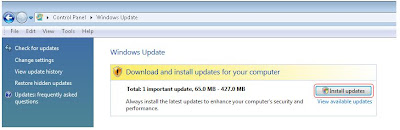
Go to "Control Panel", then Choose the "Windows Update". After that click the "Install Updates".
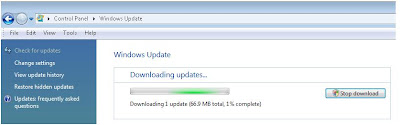
After click the "Install Updates", the system will start downoading the updates.
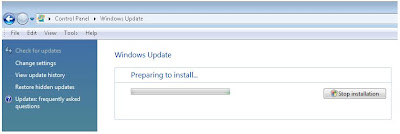
After updates completed download, the system will automatically preparing for the install
Step 2:
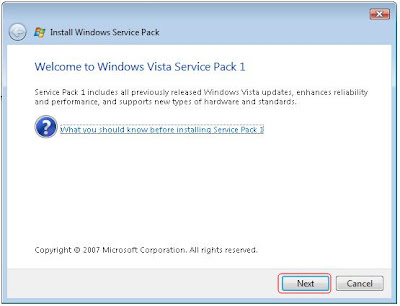
After the preparing install are done, pop up will occur as below shown. Click the "Next" to continue
Step 3:
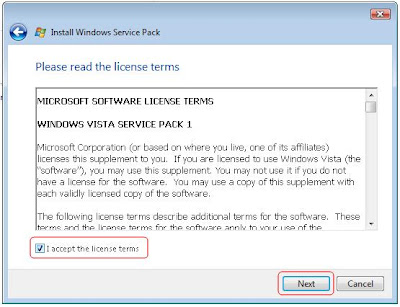
After that, tick on the "I accept the license terms" an then chek the "Next" to continue to next progress.
Step 4:
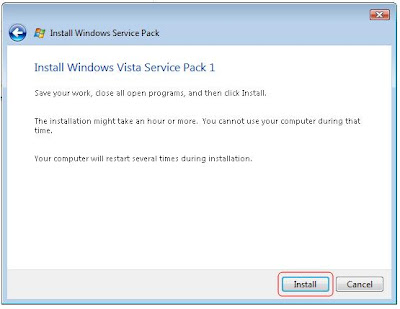
Well, Now is time to install the SP1, click the "install"
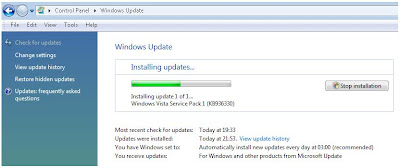
Now, the installing updates is progessing
Step 5:
The restart are required after the installing updated done. Click the " Restart Now"
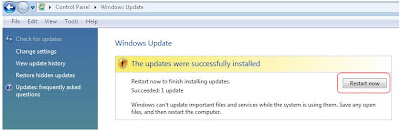
(Note: The system might restart 1~3 times automatically for the system update, and this process might take 20~60 minutes depend on your computer speed)
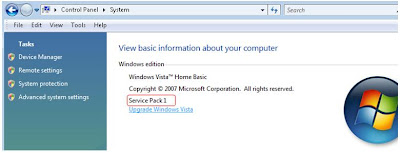
The update is completed. You can check it on the "Control Panel" >"System" and the "Service Pack 1" will appear if the update is success. (As shown below)
Step 1:
Go to "Control Panel", then Choose the "Windows Update". After that click the "Install Updates".

After click the "Install Updates", the system will start downoading the updates.

After updates completed download, the system will automatically preparing for the install

Step 2:
After the preparing install are done, pop up will occur as below shown. Click the "Next" to continue

Step 3:
After that, tick on the "I accept the license terms" an then chek the "Next" to continue to next progress.

Step 4:
Well, Now is time to install the SP1, click the "install"

Now, the installing updates is progessing

Step 5:
The restart are required after the installing updated done. Click the " Restart Now"

(Note: The system might restart 1~3 times automatically for the system update, and this process might take 20~60 minutes depend on your computer speed)
The update is completed. You can check it on the "Control Panel" >"System" and the "Service Pack 1" will appear if the update is success. (As shown below)

SP1 - Make Vista faster and better
Microsoft Vista as a giant of the windows system. To provide better services to the Vista user, Microsoft was launch the Service Pack 1 (SP1) for better and aster support to the Vista.
The major advantage after updated the SP1 to your Vista Windows as below:
1. System will run much faster compare to previous.
2. Improve the speed of the Local Area Network.
3. The sorfware compatibility increase 10 times
4. Internet Download speed increase 45% or we shall said that finally it become as faster as Windows XP)
5. Reduce the user account control stringency
Now, this SP1 are available for you to download through the Windows Update, the file size is only 66.9MB.
The major advantage after updated the SP1 to your Vista Windows as below:
1. System will run much faster compare to previous.
2. Improve the speed of the Local Area Network.
3. The sorfware compatibility increase 10 times
4. Internet Download speed increase 45% or we shall said that finally it become as faster as Windows XP)
5. Reduce the user account control stringency
Now, this SP1 are available for you to download through the Windows Update, the file size is only 66.9MB.
Subscribe to:
Posts (Atom)